Guide
iPhone Setup
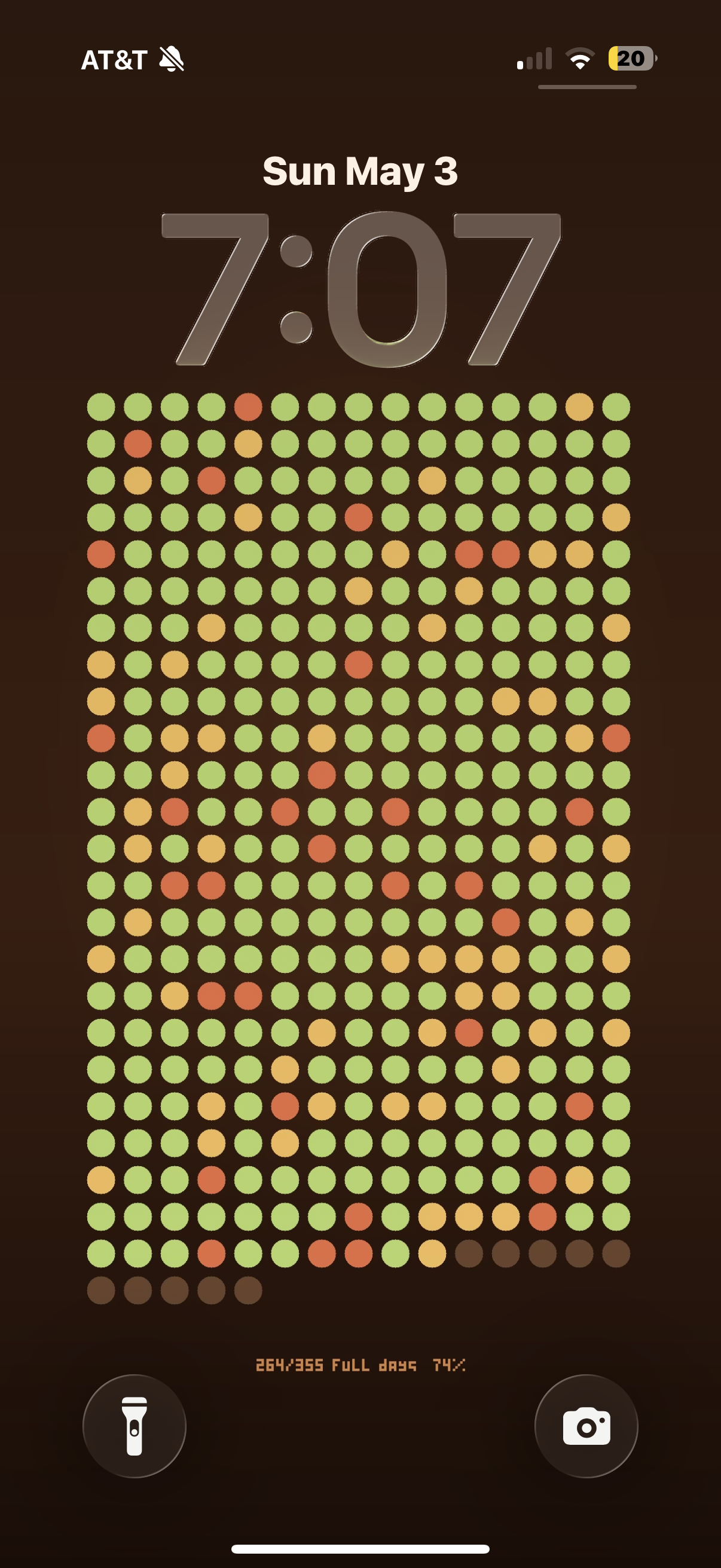
Use the iOS Shortcuts app to refresh your lock screen with the latest progress in your habits, or set up automations to auto-refresh daily.
Create a new shortcut in the Shortcuts app
Open the Shortcuts app on your iPhone and tap + to create a new shortcut.
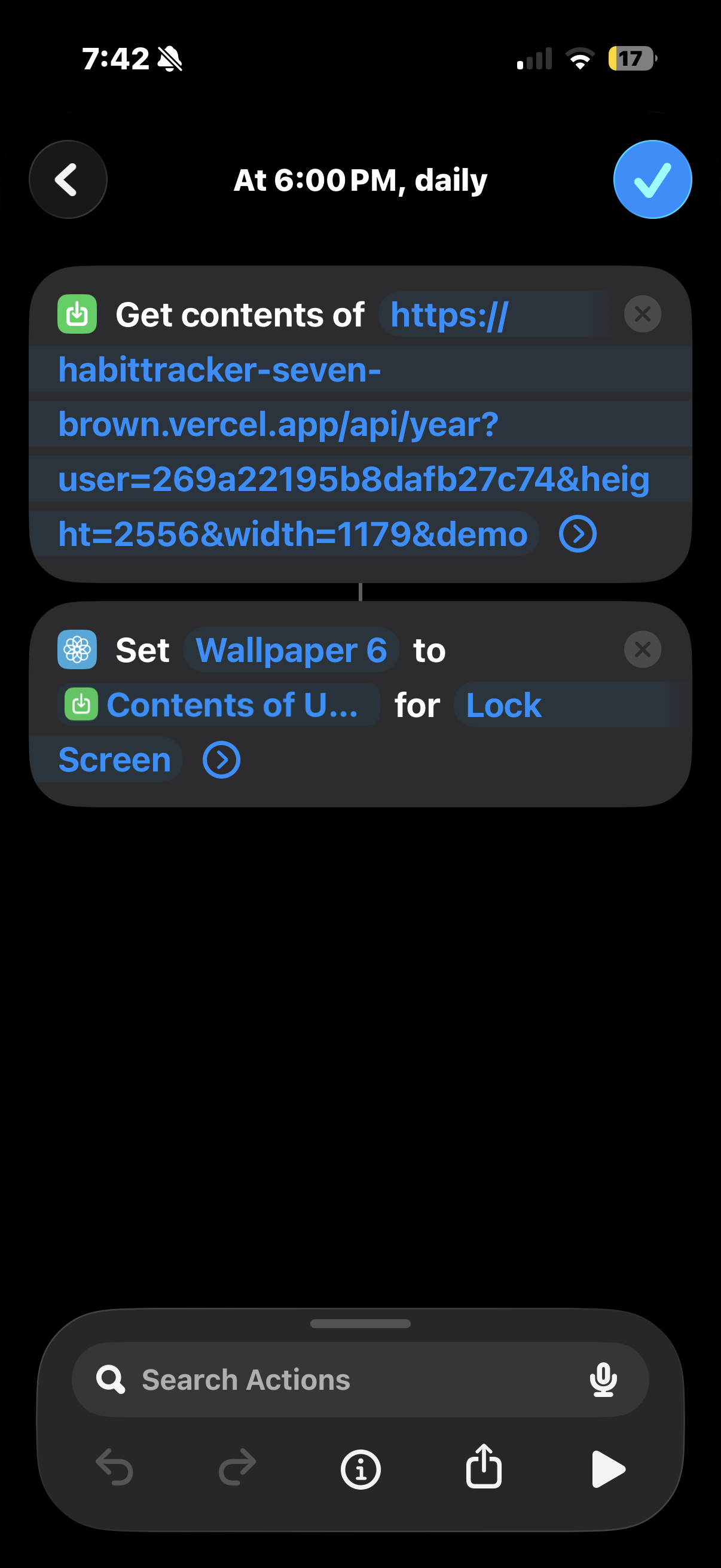
Add a "Get Contents of URL" action
Tap Add Action, search for Get Contents of URL, and select it. Set the URL to your Screenshot URL from the Setup panel. This returns your habit grid as an image.
Your public ID is in the Screenshot URL shown in the Setup panel once you're signed in.
Add a "Set Wallpaper Photo" action
Tap Add Action, search for Set Wallpaper Photo, and add it after the URL action. Set it to use the result from the previous step and target the Lock Screen. The shortcut will update your wallpaper automatically every time it runs.
Name and save the shortcut
Tap the shortcut name at the top to rename it (e.g. Daily Dots), then tap Done. You can now add it to your control center or action button to refresh your lock screen at will. Or set up a new automation via the Shortcuts app to run this action at a set time daily.